
How to use FaB Tabletop
FaB Tabletop is a free platform for playing Flesh and Blood TCG online with live video, life tracking, and combat chain management. This guide walks you through camera setup, the lobby, and the in-game screen.
0. Preface
Before jumping in, familiarize yourself with the Code of Conduct so you know what to expect from your opponents and what they can expect from you. FaB Tabletop is a community-driven project, and we want to keep it a welcoming and safe place for everyone to play.
1. Camera setup
Before joining your first game, configure your camera so your opponent can see your playmat and cards clearly. Your zoom and rotation settings are saved in your browser — you only need to do this once.
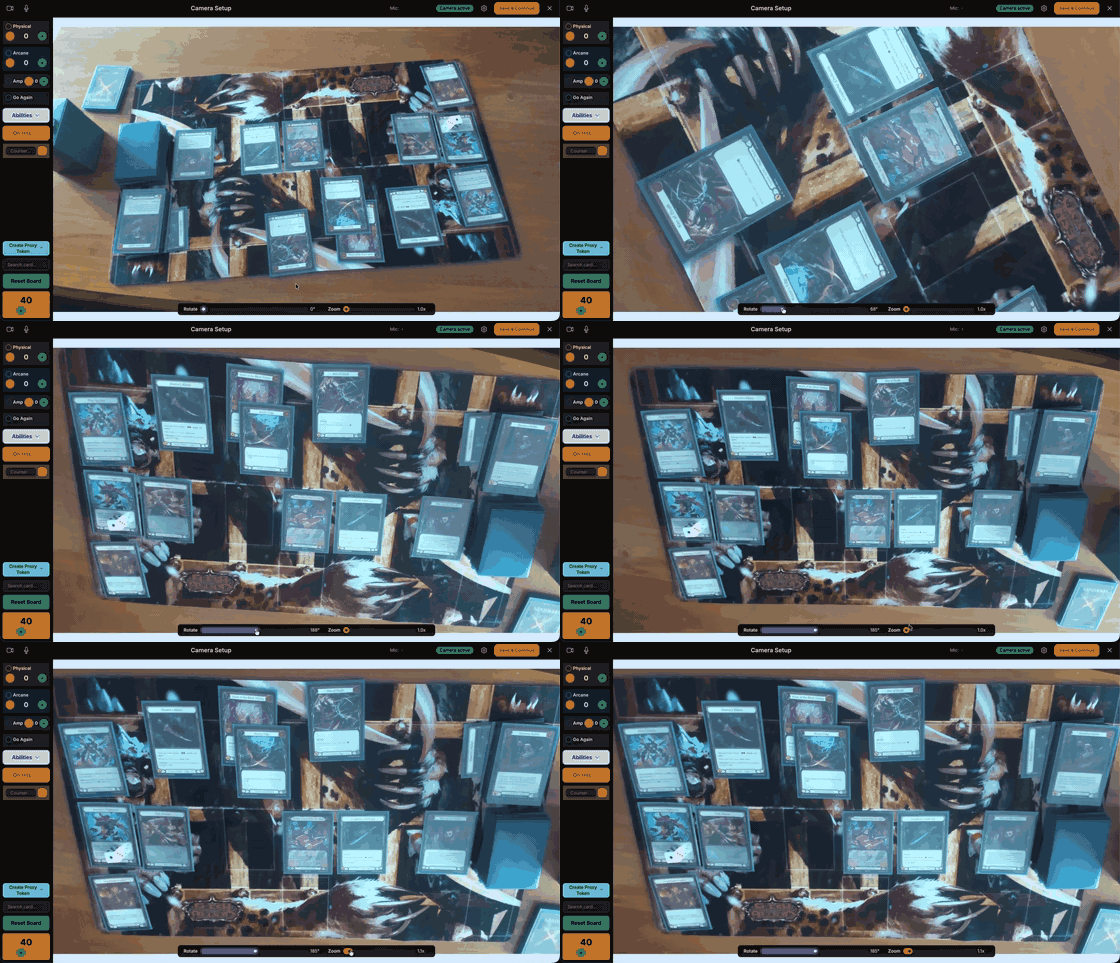
It is important to get this right. Be sure that you are in a well lit environment, but no direct lighting on the cards as the glare can make them hard to read. Center your playmat in the preview and zoom in so your hero card and pitch zone are clearly visible. Set the rotation so that the cards are orientated on your screen as you would read them on a physical playmat in front of you.
1.1 Framing your play area (zoom & rotation)
The camera setup screen previews what your opponent will see. Use Rotate if your camera is mounted sideways or upside-down, then use Zoom to fill the frame with your playmat and crop out the desk around it.
Aim to have your whole playmat in frame with a little room to spare: your equipment, deck, arsenal and hero card should all be visible. You only need to do this once — your settings are saved in your browser.
1.2 Using your phone as a camera (optional)
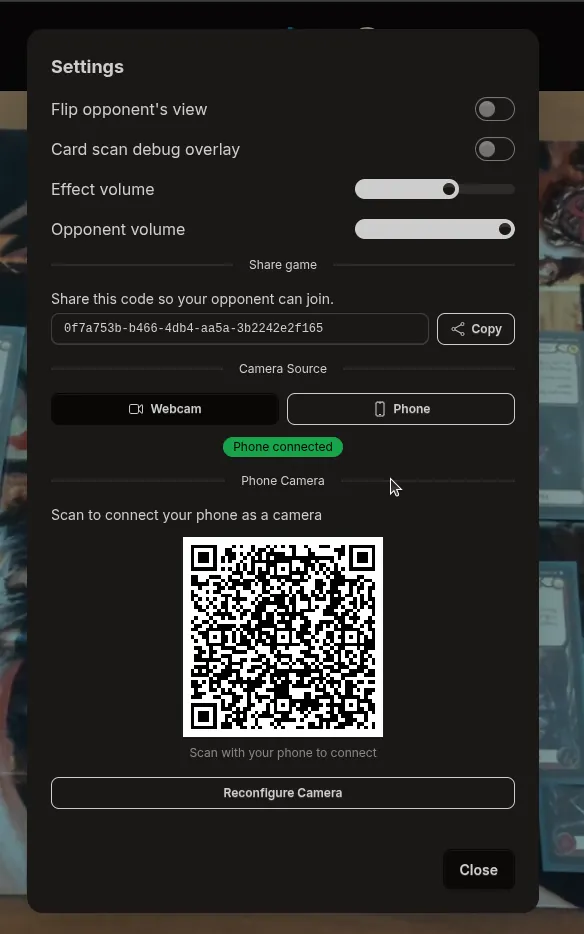
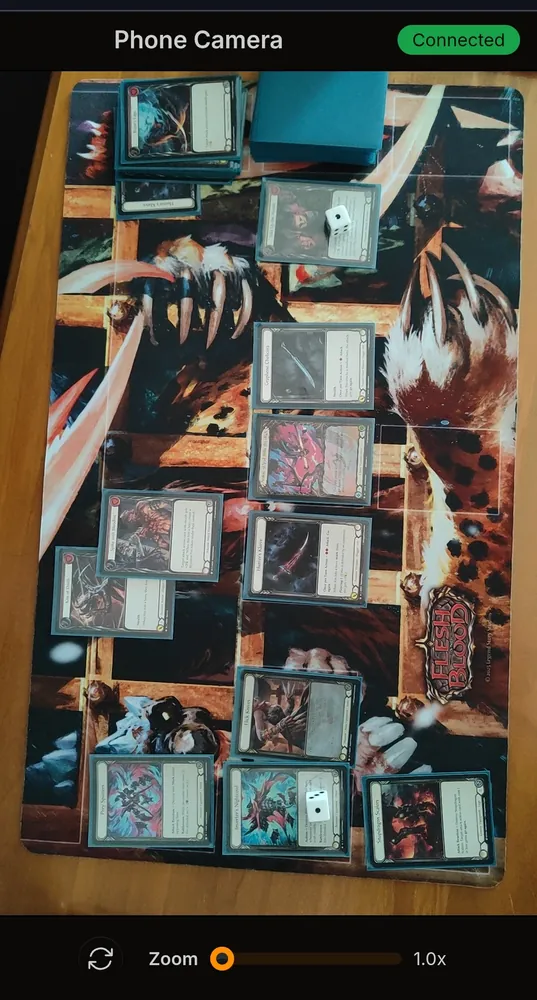
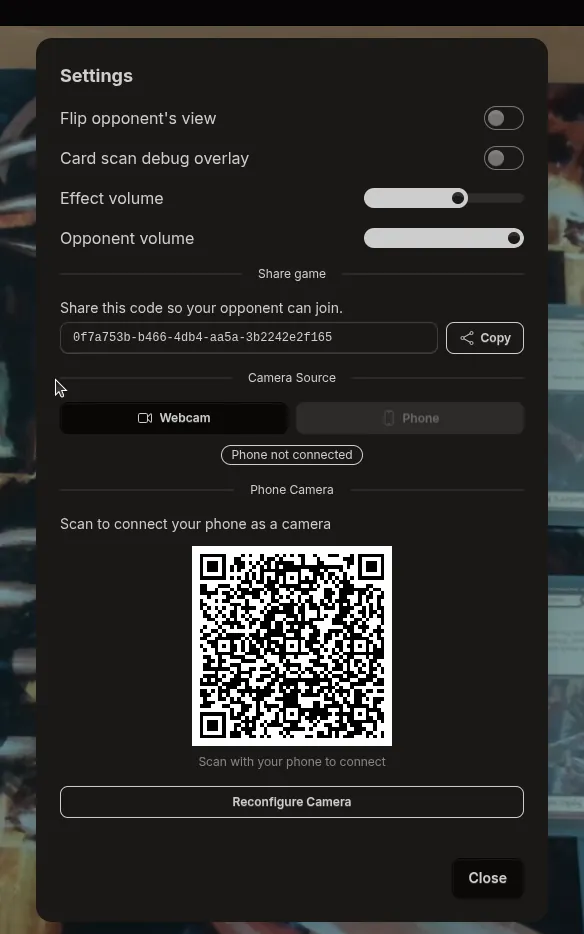
If your laptop webcam can't see the table, or if you'd prefer, you can use your phone as a camera instead. Open the settings dialog and scan the QR code under Phone Camera with your phone, accept the camera permission on the phone, then switch Camera Source to Phone once the badge reads "Phone connected".
Note that this does drain your phone's battery, so keep it plugged in and make sure it doesn't overheat. If you have a phone stand or tripod, use it to keep the camera steady.
1.3 Checking your setup, and practising, any time
The camera setup screen isn't only for your first visit. It's open at /camera-setup whenever you want it, with no game and no opponent involved. Go back to it after you move your camera, change your lighting, or swap playmats, and you'll see exactly what your opponent would see before you sit down for a real match.
It's also the easiest way to learn the in-game screen, because it is the in-game screen — the same board and sidebar, with your own camera in the middle instead of your opponent's. The life and damage counters, combat chain, tiles, tokens and the card scanner all behave exactly as they do in a game, so you can click a card on your mat to check it's recognised, try your phone as a camera, or practise tracking a chain link with nobody waiting on you.
Nothing you do there is shared or kept — leave the page and the board is cleared. The one thing that persists is your zoom and rotation, and only when you press Save & Continue.
2. The lobby
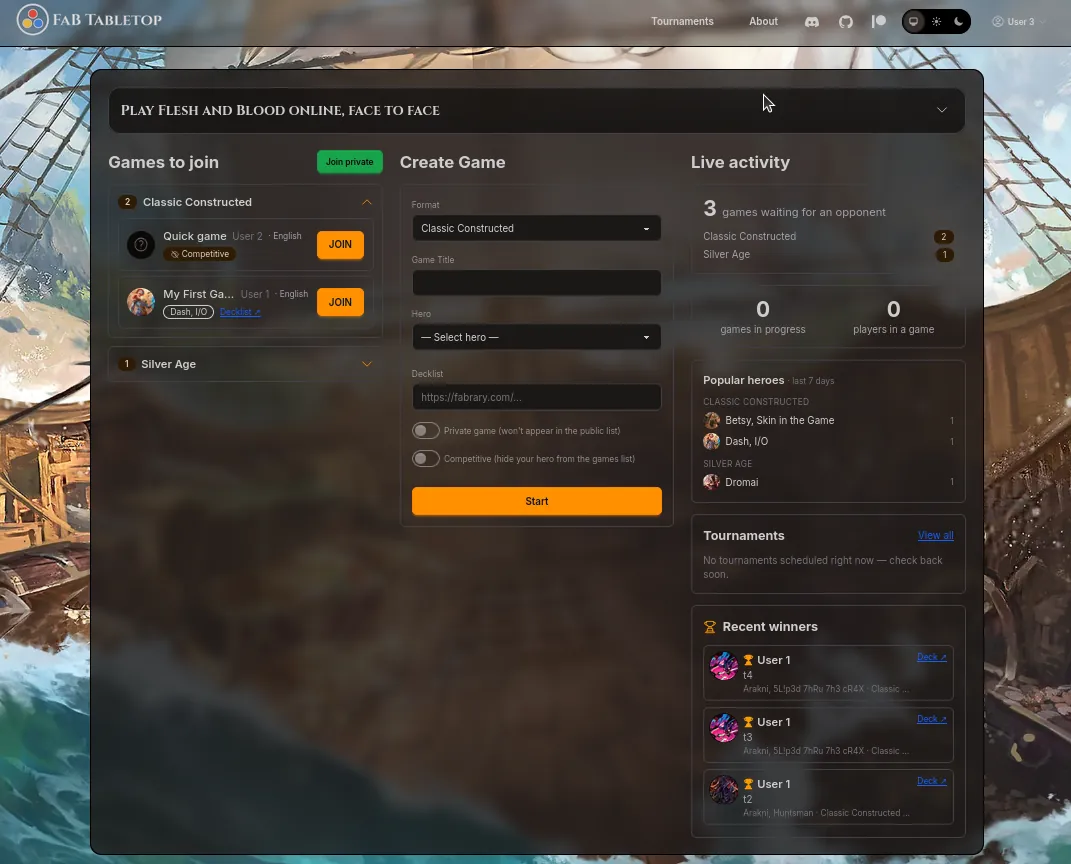
From here you can browse open games, create your own, join a private game by code, or rejoin a game already in progress. The Live activity column on the right shows how busy the site is right now — games waiting for an opponent, what people are playing this week, upcoming tournaments, and recent winners with their decklists.
2.1 Browsing public games
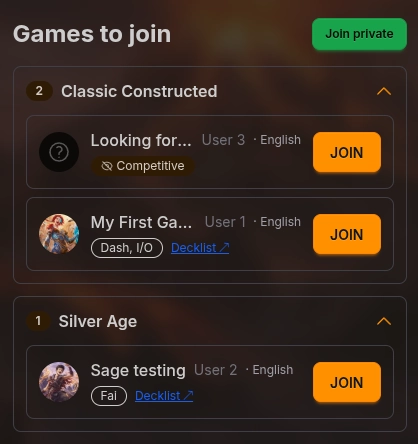
Public games are grouped by format — Classic Constructed, SAGE, and so on. Expand a format to see who's waiting. Hit Join to jump into the game.
2.2 Creating a game
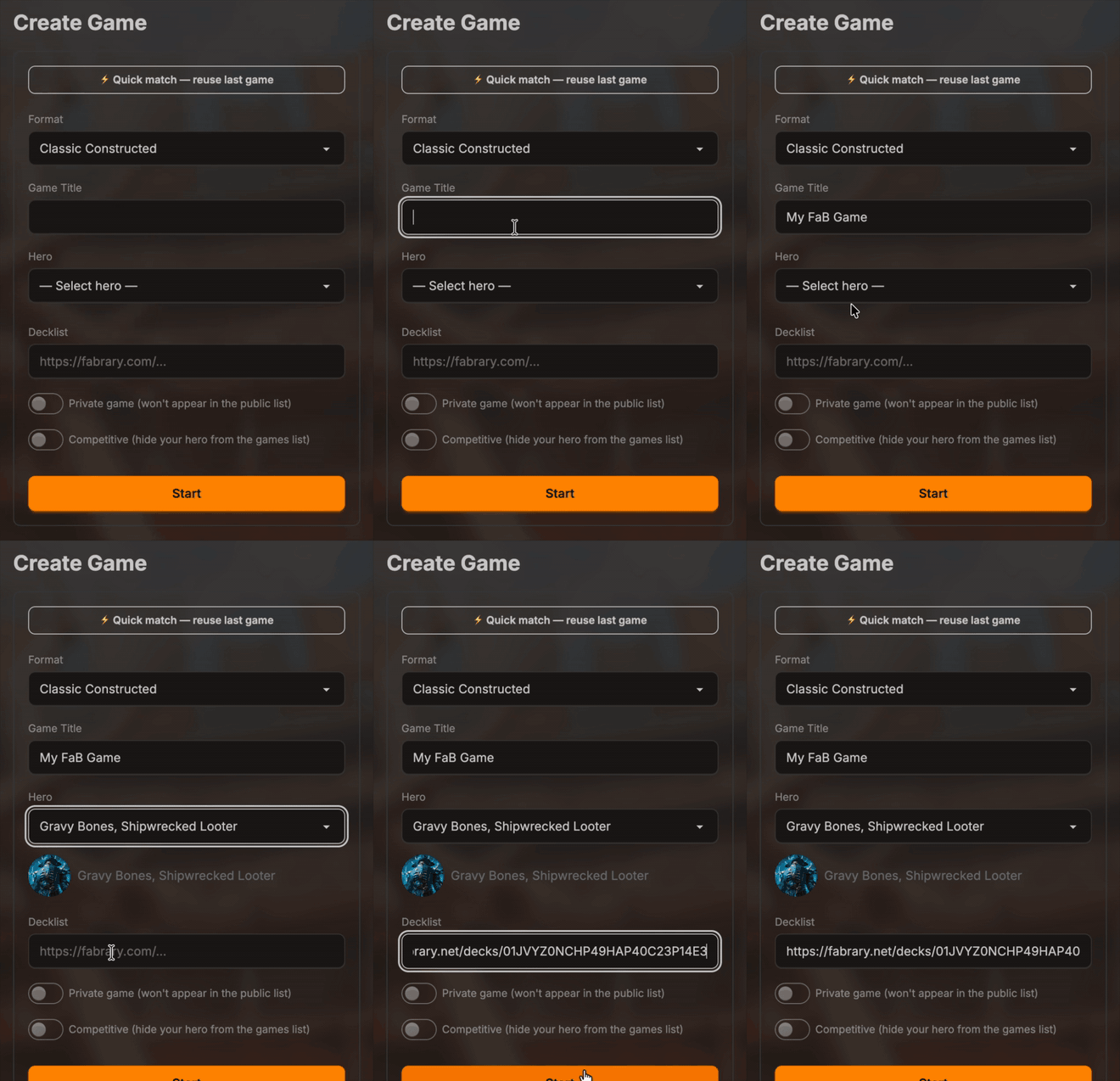
To host, pick a Format, give the game a Title (this is what other players see in the lobby) and choose your Hero. Then hit Start.
Two toggles change who can find you. Private game keeps the game out of the public list — share the game code from the in-game settings dialog instead. Competitive leaves the game public but hides your hero from the listing, so you don't tip your matchup before the match starts. If you just want to run it back, Quick match at the top reuses the settings from your last game.
2.3 Joining a private game
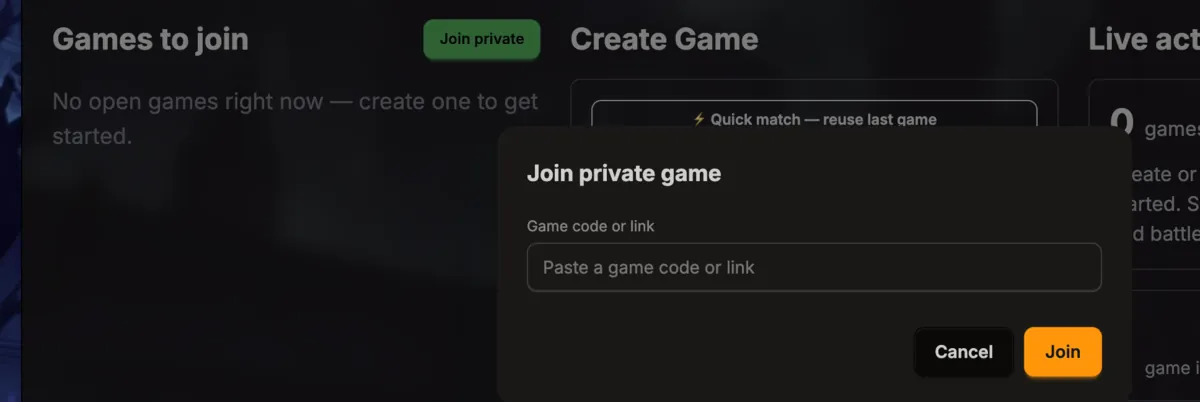
To join a private game, ask the host for their game code — they can copy it from their in-game settings dialog. Click Join private in the lobby and paste it in. The full game link works too, so a host can just send you the URL.
2.4 Resuming a game in progress
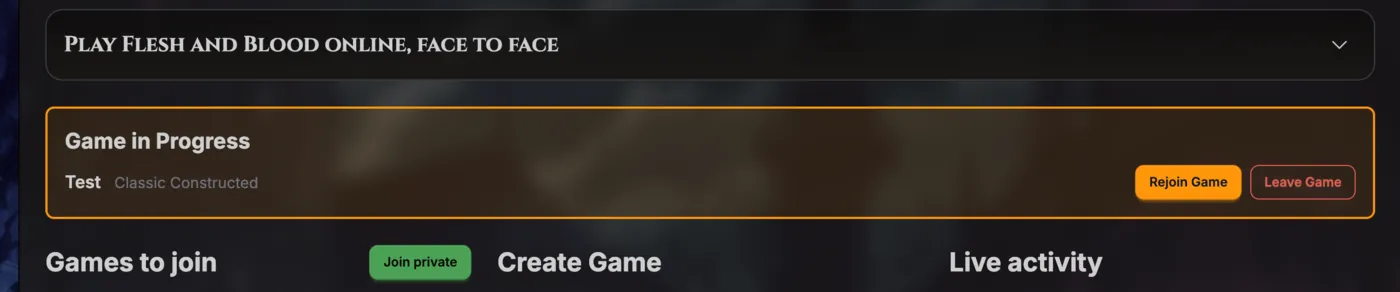
If you're already in a game, a Game in Progress panel appears at the top of the lobby with the game's title and format. Rejoin Game drops you back in — handy after a refresh, a dropped connection, or closing the tab by accident. Leave Game bows out for good and you and your opponent are no longer in the game.
3. In-game screen
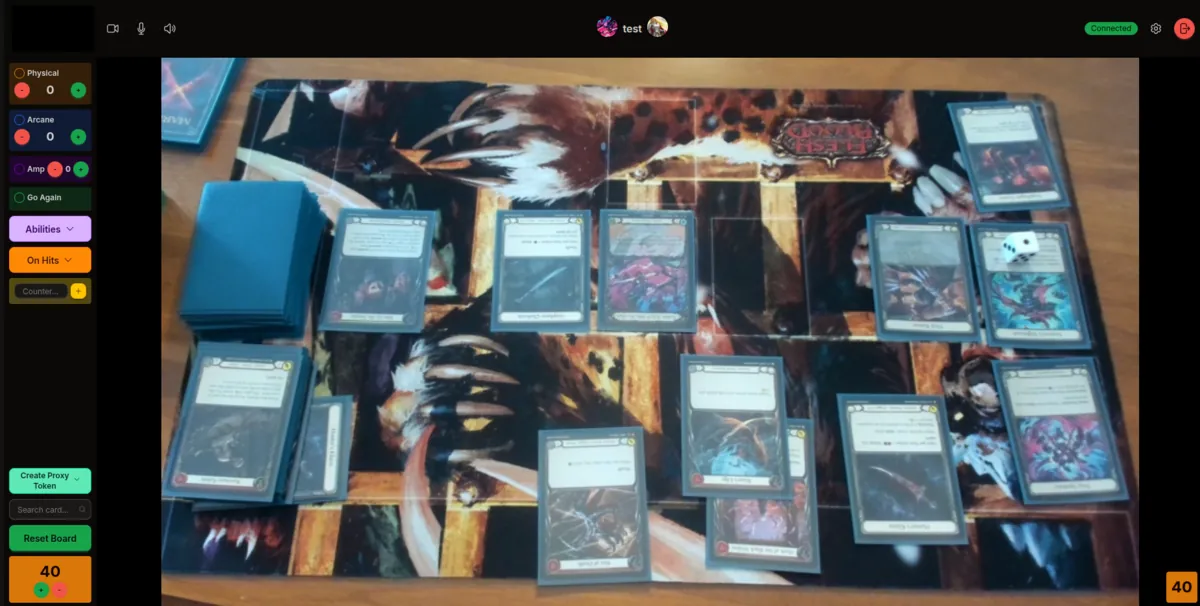
The in-game screen is where every match happens. Your opponent's playmat fills the middle of the screen, your own preview sits up in the corner, and your tracker sidebar runs down the left — damage, effects, tokens, card search, and your life total.
3.1 Top bar: camera, mic, sound, connection, settings, leave
The top bar holds your own camera preview on the far left, then toggles for your camera, your microphone, and your speaker (mute your opponent without muting yourself). In the middle is the game title and your opponent's hero. On the right sits the connection badge — Connecting, Connected or Disconnected — then the settings gear and the leave-game button. If your opponent turns off their camera or mic, an indicator appears on their feed.

3.2 Tiles
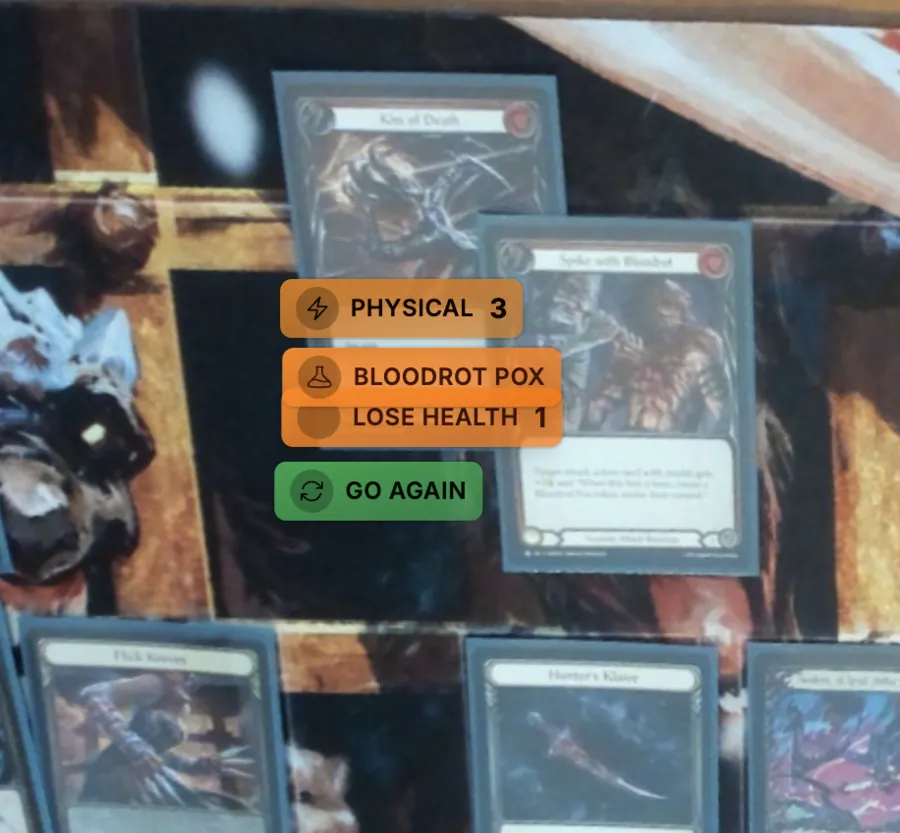
Every tracker you turn on — Damage, Go Again, on-hit effects, etc. — appears as a tile drawn over your video feed, and your opponent sees it in the same spot you do. Tiles are draggable, so you can drop each one underneath the card, which makes on-hits and damage easy to read at a glance.
3.3 Combat chain management
The left sidebar is your combat chain. Toggle Physical for an attacking card and set the amount with +/-; your opponent sees the number update live, so they know exactly what's on the chain before it resolves.
When the chain closes, Reset Board clears everything you had added to the chain link — damage, Go Again, abilities, on-hit effects and custom counters.
3.4 Life total
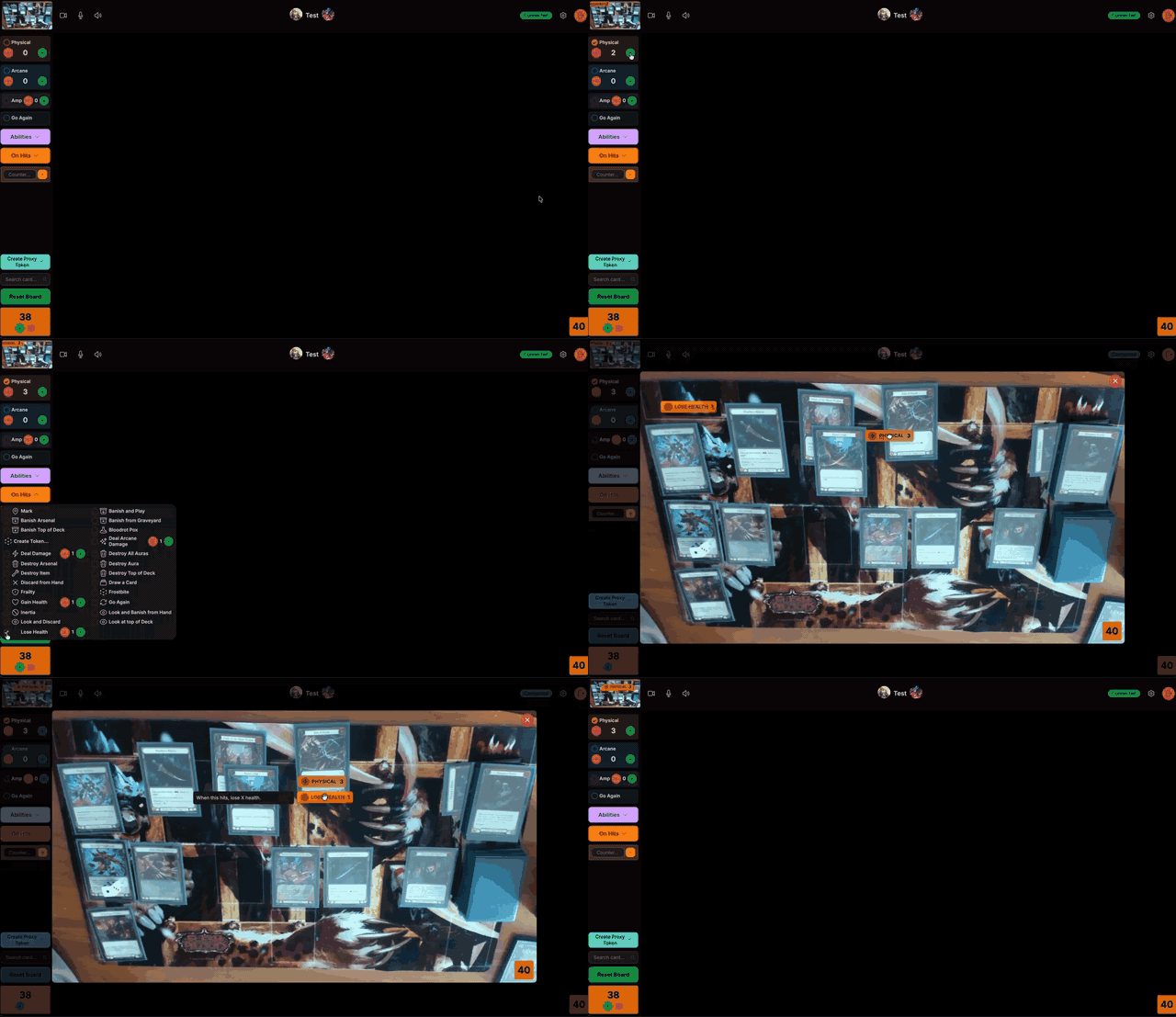
Your life total sits at the bottom of the sidebar with +/- buttons, and your opponent's is mirrored in the corner of their board. Most Classic Constructed heroes start at 40 — when an opponent's Snatch hits you for 4, tap minus four times to drop from 40 to 36.
3.5 On-hit effects
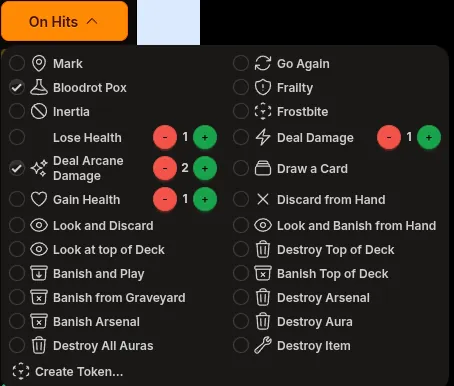
The On Hits dropdown tracks anything that would trigger on a successful hit — Bloodrot Pox, Mark, card draw, discard, banishing, and plenty more. Effects with a variable amount (Lose Health, Deal Damage, Gain Health) have their own +/- so you can set the amount.
Each one you tick becomes a tile on your opponent's view, and hovering it shows the reminder text. Create Token… at the bottom opens a second panel for the tokens you make for yourself: Ponder, Might, Spectral Shield etc.
For a trigger the list doesn't cover, use the Custom on hit… box at the bottom of the same dropdown: type it, hit +, and a tile with your own wording drops onto the board — same as the effects above, just without a counter. The × on the tile clears it again.
3.6 Tokens & counters
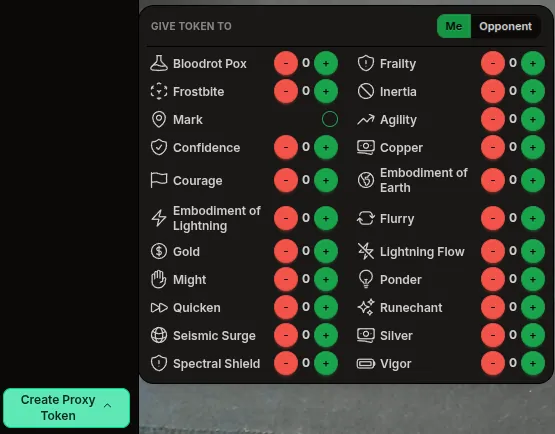
Create Proxy Token tracks a token someone would otherwise have to remember. Pick who it lands on — Me or Opponent — then pick the token; the whole list is available to either side, so you can hand over a Mark or a Frostbite and still give yourself a Runechant. Counters use +/- for the ones that stack; Mark is a single toggle since you can only ever be marked once.
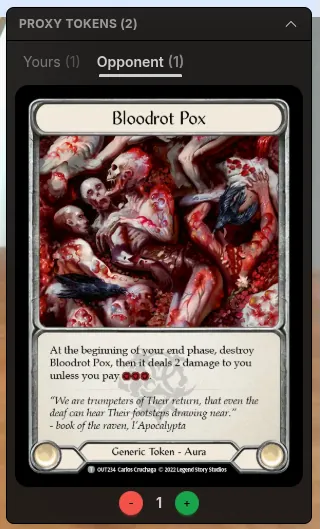
Both players see the same panel, and it lists both sides: collapsed it's a row of chips per player, expanded it splits into Yours and Opponent tabs showing each token as a card so you can read exactly what it does. Either player can add to or clear either list — whoever notices the trigger first can tidy it up.
For anything the app doesn't have a tile for, type a name into the Counter… box and hit +. That drops a named counter onto your board that you can increment, decrement, and drag wherever you like — good for one-off card effects and hero-specific tracking.
3.7 Click a card to recognise it
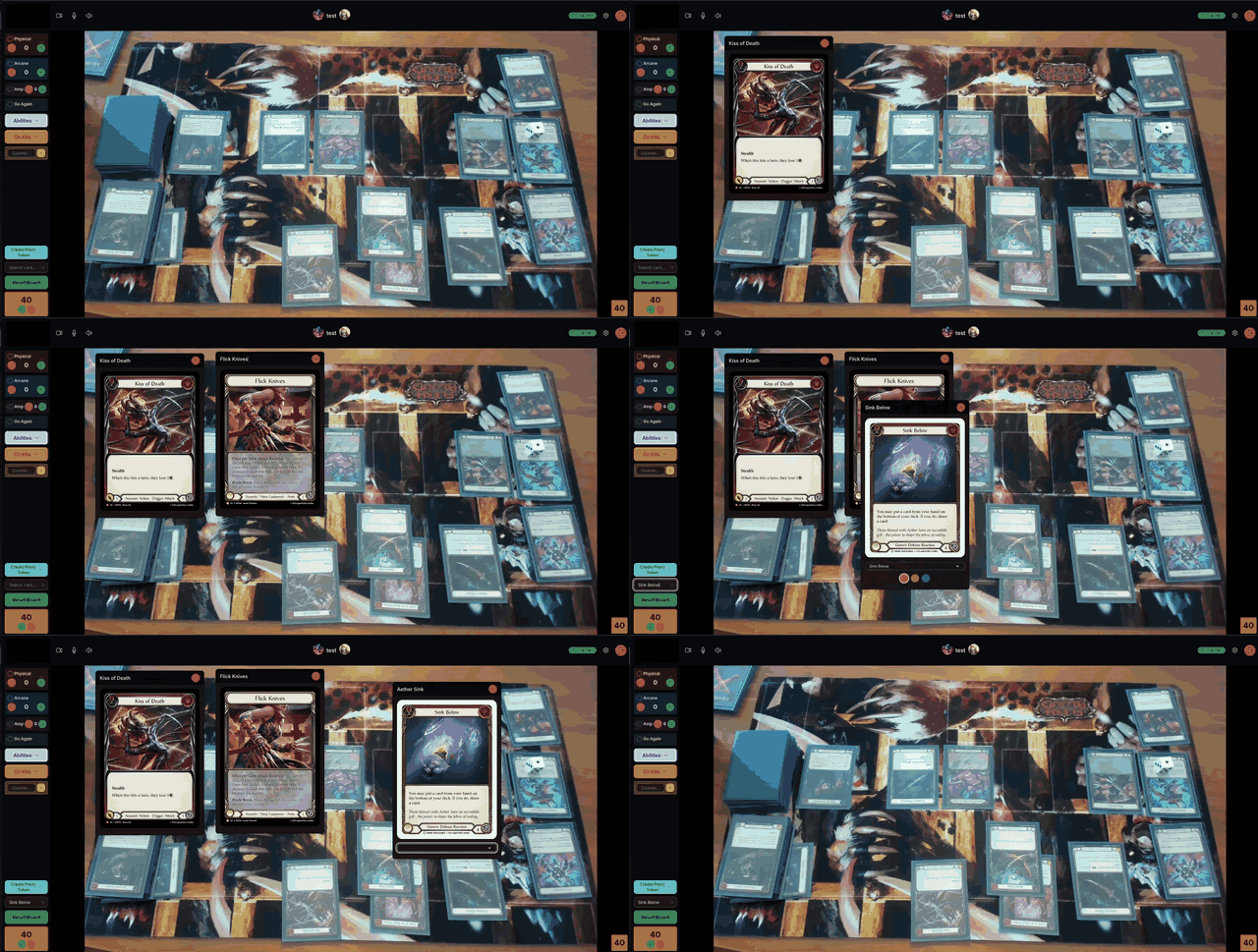
Can't read a card on your opponent's mat? Click it. FaB Tabletop looks it up and matches it against the full card database — the high-resolution card image pops out for you to read.
Pop-outs are draggable and you can open as many as you like, which makes it easy to line up a couple of cards and compare their interactions. If the match isn't quite right, the dropdown under the image offers the other candidates, and the coloured dots switch between pitch variants.
A scan needs a reasonably clear look at the card — heavy glare, a hand covering the art, or a card at a steep angle can all defeat it. If nothing opens, nudge the card into better light and try again, or fall back to the search box below. A die over the card art also affects recognition, so ask your opponent to place it over the text box instead.
You can also click the title box and enter in the name of the card for the cases where the scanner doesn't quite get it right.
3.8 Card search
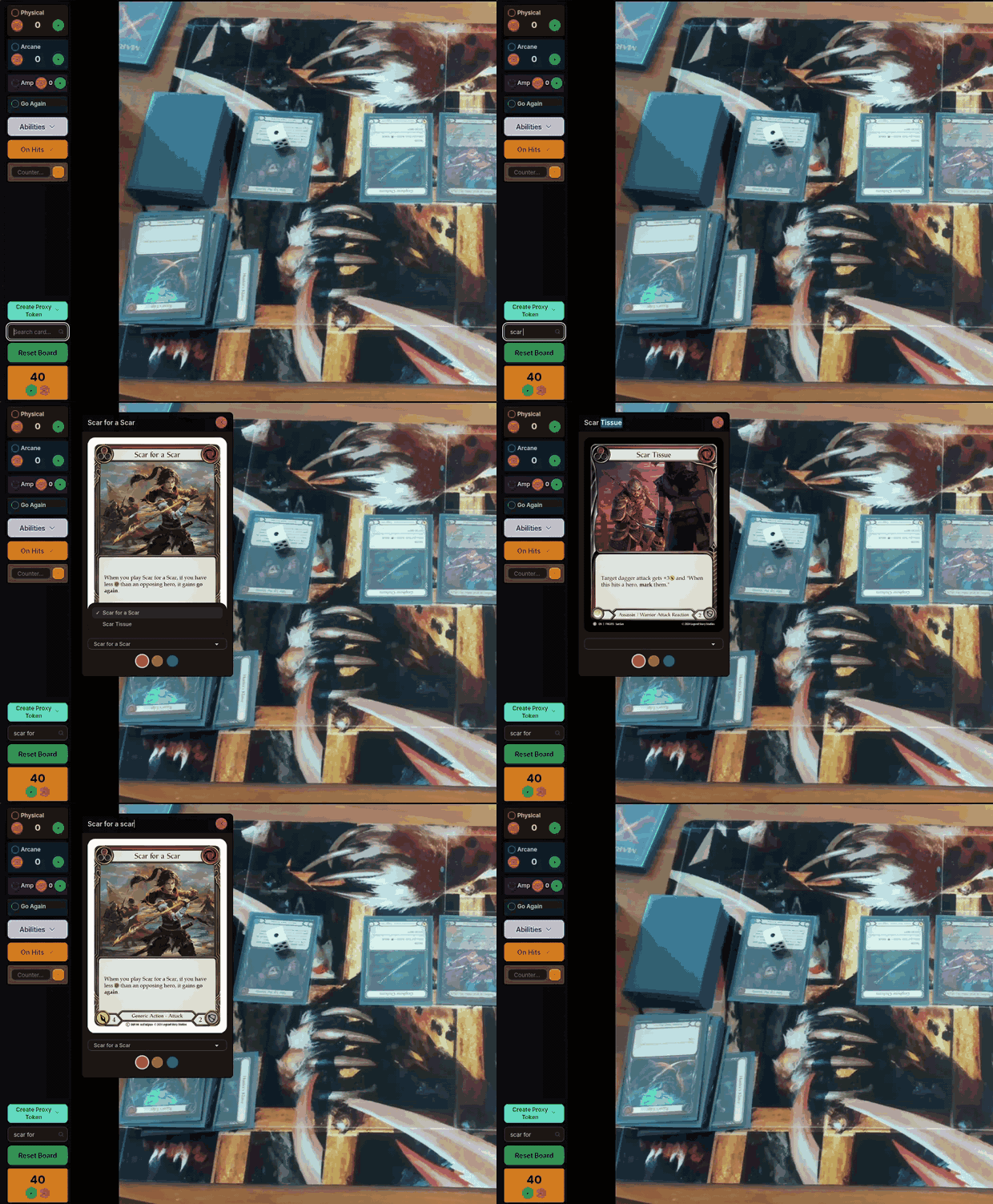
The Search card… box looks up any FaB card by name. It's forgiving of typos and half-remembered names, so "scar for" is enough to find Scar for a Scar. The result pops out the same way a scanned card does.
Every pop-out doubles as a search box: edit the name in its header to swap it for a different card without opening another one. The coloured dots underneath jump between pitch variants, so you can view the red, yellow, and blue versions of a card.
3.9 In-game settings
The settings dialog covers everything you might need to change mid-match:
- Flip opponent's view — rotate their feed 180° if their camera is mounted the other way up.
- Card scan debug overlay — shows what the card scanner actually sees. Handy if recognition is misbehaving and you want to report why.
- Effect volume and Opponent volume — independent sliders for the app's sound effects and your opponent's microphone.
- Share game — copy the game code so someone can join a private game.
- Camera Source — switch between your webcam and your phone, with the QR code and right below.
- Reconfigure Camera — jump back to camera setup to re-configure your zoom and rotation.
4. FAQ
Do I need to pay for this?
No. FaB Tabletop is free, and there is no paid tier, no trial and nothing held back behind a subscription — every feature on this page is available to everyone.
It isn't free to run though, servers cost money. If you play here regularly and want to chip in, you can support us on Patreon.
Is this an official Flesh and Blood service?
No. FaB Tabletop is a community project, built by players for players. It is not affiliated with, endorsed by, or sponsored by Legend Story Studios, and Flesh and Blood is their trademark. Card names, text and images belong to LSS and are used here so you can read your own cards during a game.
That also means we are not a rules authority: for anything about how a card actually works, the official rules and rulings are the final word, or join the JudgeHub Discord for rules help.
Do I need to download anything?
No. Everything runs in your browser — no client, no plugin, no install. Open the site, allow camera access, and you're playing. Any current version of Chrome, Edge, Firefox or Safari works.
The game screen is built for a laptop or desktop, since you need room for your opponent's board and the tracker sidebar side by side. Your phone can still join in as a camera — see camera setup.
What if I don't have a webcam?
Not a problem, your phone works as one. Open the in-game settings dialog, scan the QR code under Phone Camera with your phone, accept the camera permission, then switch Camera Source to Phone. Nothing to install there either — the phone just opens a web page.
A phone is often the better camera anyway: it's easier to mount above the mat than a laptop lid. Keep it plugged in, because streaming video will drain the battery over a long game. Full walkthrough in 1.2 Using your phone as a camera.
Can I check my camera or try the board out without joining a game?
Yes — the camera setup screen is open any time, and it shows you precisely what your opponent would see. Go there whenever something about your picture has changed: you moved the camera, the light shifted, you want to test your phone as a camera before a match rather than during one.
It doubles as a practice board. It's the in-game screen with your own camera in the middle, so the life and damage counters, combat chain, tiles, tokens and the card scanner all work as they do in a real game — a good place to get familiar before your first one. Nothing you do there is shared or saved; only your zoom and rotation are kept, when you press Save & Continue. More in 1.3 Checking your setup, and practising, any time.
Do I need an account?
To browse the lobby and see what's going on, no. To create or join a game you need a free account with a confirmed email address — check your inbox for the confirmation link after registering. That's what lets your opponent know who they sat down across from, and what keeps your tournament results attached to you.
Is my video recorded?
No. Video and audio travel directly between you and your opponent wherever the network allows it, and nothing is recorded, stored or reviewed by us. See the Privacy Policy for exactly what we do and don't keep.
Do keep in mind that your opponent can see your play area live — same as sitting across a table from them — so be mindful of what else is in frame.
The card scanner isn't recognising a card. What now?
Scanning needs a reasonably clear look at the card. Glare, a hand or die over the art, a steep camera angle or a dim room will all defeat it. Nudge the card into better light, ask your opponent to move a die off the art onto the text box, and click it again.
If it still won't match, type the name into the Search card… box instead — it's forgiving of typos, and the pop-out is the same either way. More detail in 3.7 Click a card to recognise it.
The video is blurry or laggy. How do I improve it?
Light the table well but keep direct light off the cards — glare is the most common cause of an unreadable board. Then zoom in during camera setup so your playmat fills the frame rather than the desk around it; the sharpness you have is better spent on the cards.
If it's stuttering rather than soft, a wired connection or a spot closer to the router usually helps more than any setting. When you're using a phone as a camera, keep it plugged in and somewhere it won't overheat — a hot phone quietly reduces its own video quality.
My opponent disconnected mid-game. Is the game lost?
No — a dropped connection or an accidentally closed tab is recoverable. There's a short grace period before anyone is treated as having left, and returning to the lobby shows a Game in Progress panel with Rejoin Game. Both of you can come back and pick up where you were.
I have a suggestion or think I've found a bug
Please tell us — both are genuinely welcome. The quickest route is our Discord, where you can describe what happened and we can ask follow-up questions. Or feel free to open an issue on GitHub.
What helps most: what you were doing, what you expected, and what happened instead — plus your browser. If it's the card scanner misbehaving, turn on Card scan debug overlay in the in-game settings and include a screenshot of what it sees.
Someone is being abusive. What should I do?
Leave the game — you never have to stay in one — and report it on Discord. Harassment and cheating aren't tolerated here. Our Code of Conduct sets out what's expected of everyone and what happens when someone ignores it.
5. Contact
Have questions or feedback? Reach out on GitHub or drop us a message on Discord.